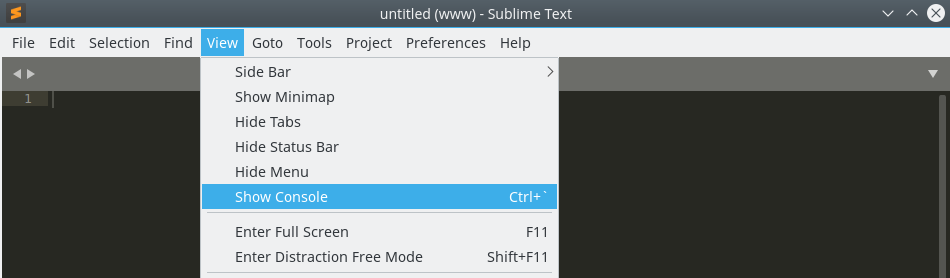
The default keybinding of Sublime Text 3 for Show Console (View > Show Console) is Ctrl+`.
However, on my laptop, this keyboard shortcut doesn’t work. My preferred operating system is Linux-based Kubuntu 16.04, which might be part of the problem.
Since I don’t have Windows on my laptop, I booted into Windows 10 on my desktop. There, I discovered that the Show Console binding was working just fine.
After consulting Google, I found that other Sublime Text users were experiencing comparable problems. And — surprise, surprise — the majority of my fellow sufferers were Windows users!
But my impression is that we do have something in common. We are all using a non-US keyboard; UK English, Spanish, Norwegian, and US International with Dead Keys — me.
Fortunately, Sublime Text is a highly customizable text editor. Our biggest problem is finding a combination of keys still available. My pick is Ctrl+/.
So, how do we alter this default keybinding?
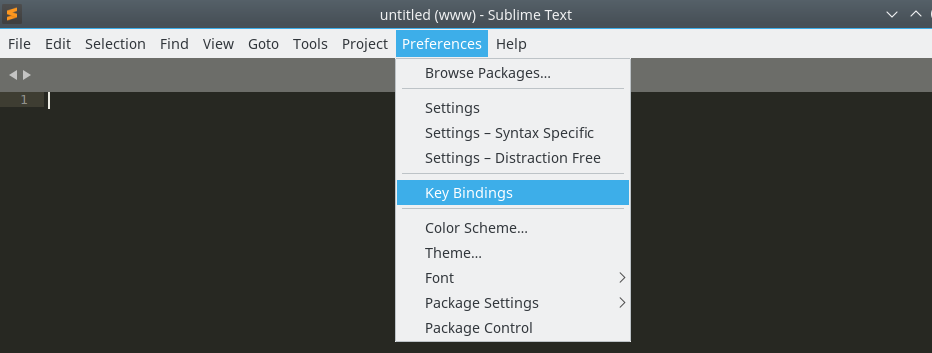
In your Sublime Text menu, navigate to Preference > Key Bindings.
A split window appears with the Default keymap left, and the User defined keymap to the right.
In the part at the right, between the square brackets, you add:
|
1 2 3 4 |
[ { "keys": ["ctrl+/"], "command": "show_panel", "args": {"panel": "console", "toggle": true} } ] |
In case this is your first user defined keybinding, you might need to add the square brackets — as above — too.
Obviously, when you prefer a different key combo than Ctrl+/, replace it accordingly.
Now save the keymap documents with your addition.
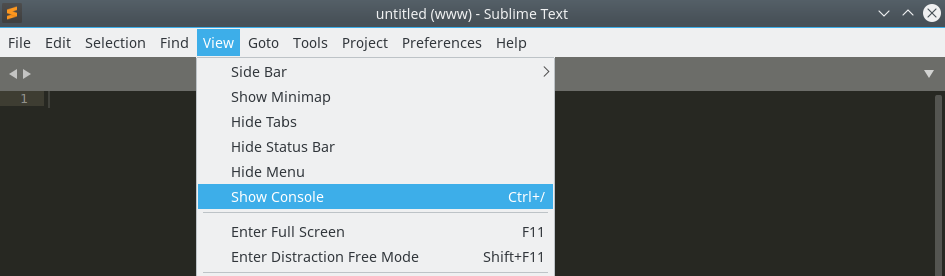
When you check the View > Show Console menu entry again, you will notice the modified keyboard shortcut.
That’s it. Happy coding!